Local Links
External Links
Contact
Search this site
How To Identify and Disable software extensions on OS X that cause other Apps to crash

On this page... (hide)
Sometimes, people contact me because software of mine, such as Find Any File, crashes mysteriously at launch.
Often it turns out that this is caused by an incompatibility or bug in some other software that tries to enhance general Mac OS X functionality.
The difficulty is to figure out which software is the culprit, in order to disable it and/or notify its maker and ask to get this resolved.
Sometimes, one can get a hint by looking at the detailed Crash Report one can find when opening the "Console" app. It will contain a long list of "Binary Images", listing which software components are loaded along with the app that crashes. Many of those components are so-called Frameworks and "libs" provided by Apple as part of OS X - they're usually not the culprit. Then, there are other parts, installed by other apps or even installed explicitly by you for a particular purpose.
However, analysing these reports is difficult and may not lead to success, either. Instead, I'll try to give you some pointers that are often helping and do not require to understand the Crash Report contents.
1. Figuring out if it's a software conflict at all
Before starting to modify your system, sorting out extensions etc, here's a few even simpler steps to see if you'll have success going down that path:
- Restart the Mac in "Safe Mode" (see your Mac's help under "Starting up in safe mode"). If the app in question then launches without a crash, that's a good indicator that some unrelated software component is causing this, and doesn't now since it's disabled by the Safe Mode.
- Create a new Admin user, log in as that user and see if the app runs fine there. If it does, then you most probably only need to search for culprits in your home folder's Library folder, not in the Library folder at your disk's root. Also, now that you have one "good" and one "bad" user set up, try copying groups of files or even entire folders from the bad user's Library folder to the other, to see when it breaks the app again. Copy not only the below mentioned folders but also the contents of the Preferences and other folders inside the Library folder. However, before one user can access the other user's home folder, you'll need to add that user to your home folder's "Sharing & Permission" segment using the "Get Info" menu command.
2. Where many of the culprits are found
Most of those software extensions are found inside two folders. One is the Library folder directly at the root of your startup disk. The other the Library folder of your home directory. Starting with OSX Lion, this folder might be hidden - to find it, go into the top menu bar, open the "Go" menu and hold down the option ("alt") key - now "Library" will appear in the menu and you can choose it.
Next, inside these two Library folders, we have the following folders of interest:
- Input Methods
- InputManagers
- LaunchAgents
- LaunchDaemons
- ScriptingAdditions
- Contextual Menu Items
- Spotlight (files ending in ".mdimporter")
Not all of them might actually be available on your computer, they may only get created when actually needed.
The first two "Input..." folders should be checked first for culprits. Once you've ruled them out, go on with the other ones.
Other places where conflicting components may be found:
- In your System Preferences (you can remove those by right-clicking on their icons in the System Preferences window).
- Login Items (found under Accounts in your System Preferences window).
- In rare cases, some folders inside the /System/Library folder may also be affected. Check there for non-Apple components in the above named folders, as well as inside the "Extensions" folder.
3. Finding the offender
Here's how you'd go about it in general:
- You open either of the above folders and move gradually each of their included folders or files out of it to some other place of your choice, e.g. onto the Desktop.
- Once you've moved one or more items this way, restart your computer and then test your formerly crashing app to see if that fixes it.
- If the crash still occurs, keep moving other items from the above folders away, until you hopefully end up with no more crashing.
Once the crashing stops, move the other items back in their places where they were originally, restarting and testing again, until you have just a single item left that causes the crashing when present in one of the above folders.
If you've actually found a culprit this way, please contact me (see E-Mail link on the left) and tell me what you found out, with the name of the item, maybe even include it in the mail so I can review it, and which app(s) crashed due to it. I would like to create a database of potential culprits and can also assist in helping resolve them with the respective developer.
4. Moving items out and back, when needing authorization
While moving items from the folders inside your home folder's Library folder should be no difficulty, moving those from the Library folder at the root of your startup disk gets tricky: The requiry authorization and their ownership (permissions) must be restored afterwards, or they won't be recognized any more and may cause warning messages at OS X startup. Here's a step-by-step guide:
4.1 Moving items out of their system folders
First, let's look at the contents of my own LaunchAgents folder:
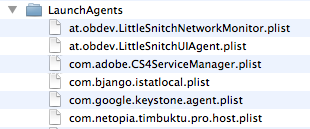
Now let's perform a "Get Info" command on the com.bjango.istatlocal.plist file:
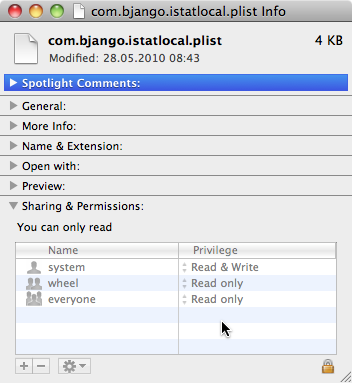
Note the three items listed under Name in the Sharing & Permissions section. This is how they need to be when the item gets moved back later.
Now let's move it out. To do that, simply drag it to the Desktop or a folder you've created, maybe even named "From Root LaunchAgents" so that you later still know where it came from. The drag will not actually move but copy the item. That's because, as the Get Info showed above, "you can only read" this item, i.e. not delete it from its place, usually. But now that you've created a copy, you can move the item to the Trash - this time you'll be asked to Authenticate this operation:
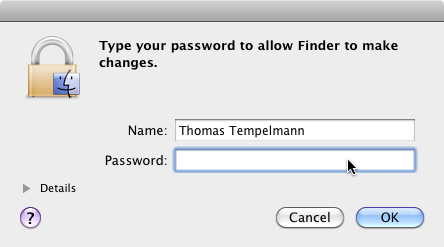
Enter your account password. Then the file will be removed from the LaunchAgents folder.
Now you've successfully moved the item out of the system and you can restart your Mac to see if this fixes the crash.
If it doesn't fix the crash, you should move the item back:
4.2 Moving items back into their system folders
First, simply drop the previously created copy back into the folder from where it came (here: "LaunchAgents"). You'll get prompted again to authorize this operation:
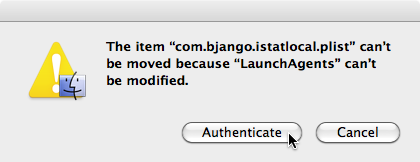
Confirm and then enter your password again.
Now perform again a "Get Info" on the restored file:
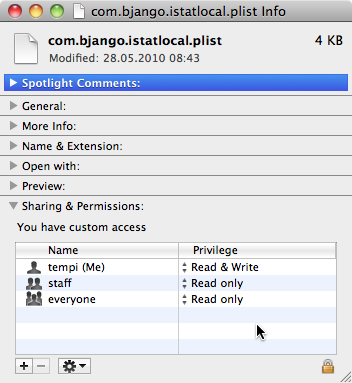
Note that now you're the owner of this file, but it should be "system". To fix that, perform "Get Info" on the enclosing folder (here: "LaunchAgents"). You'll see this:
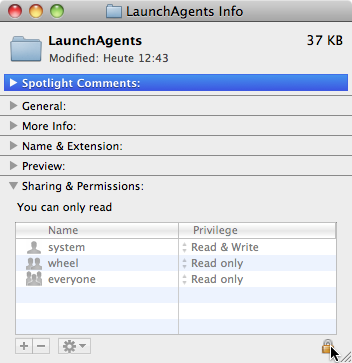
Click on the little lock at the bottom right. This will ask you again to authenticate. Go ahead.
Now click on the Cogwheel at the bottom of the Info window and choose Apply to enclosed items...:
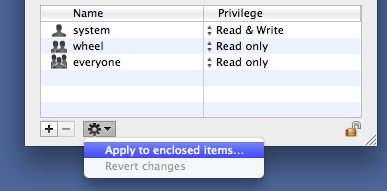
Again, you have to confirm:
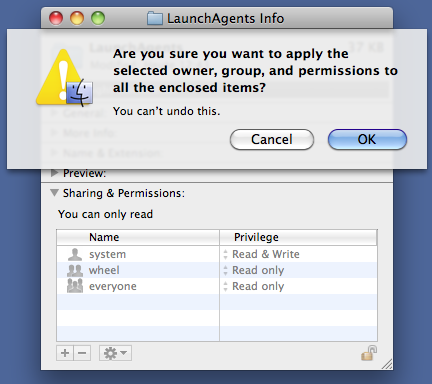
After that, the Permission Names of the moved-back item(s) will be restored and you can restart the Mac to see that the functionality provided by these item(s) is back.
5. Dealing with crashes related to "mdimport" or "mdimportserver"
If you have frequent crashes after saving specific kinds of files, you might have an issue with Spotlight, the file search feature in OS X.
There are little programs that do the work for Spotlight, looking at files and extracting the searchable data from them. They're called Spotlight Importers. These importers get activated within seconds of saving a file they claim to be able to handle. There are standard importers for all kinds of common files, such as plain text (ending in .txt), RTF, PDF, PNG, Keynote, Mail etc. And any application that creates files of their own kind can bring along their own Spotlight Importer, which is then included in the application's bundle (i.e. package folder).
Sometimes, these importers may be failing, causing crashes. The goal is to identify and disable the faulty importer.
To disable such an importer, the easiest way is to rename its file name extension from .mdimporter to .mdimporter-disabled or whatever you prefer. If you can't rename it, use the Finder's Compress command to create a .zip file of it, then delete the original item. The importer gets disabled immediately, no need to restart the computer.
Here's how to find the offending importer:
First, find all importers, by searching your startup volume for all files with their name ending in ".mdimporter" - you can use Find Any File for that.
Now look at the names of the found importers, and their locations (i.e. are they inside an application?). Maybe that links them to the type of file you get crashes with - then that's probably the culprit. Example: If you get crashes after saving Quark files, an importer residing inside the Quark application or using "quark" in its name is probably the one handling Quark files, and therefore the most likely to be the one that causes the crashes. If in doubt, disable all importers and then see if the problem goes away, then gradually re-enable them until you find the one that's causing the trouble.